---
title: How to create and send a sale invoice?
description: How to create and send a sale invoice
---
[Skip to content](https://university.wearesequence.ai/en/knowledge/how-to-1#main-content)
- [English](https://university.wearesequence.ai/en/knowledge/how-to-1)
- [Français](https://university.wearesequence.ai/fr/knowledge/comment-créer-une-facture)
English
Show submenu for translations

Open main navigation
Close main navigation
- - [English](https://university.wearesequence.ai/en/knowledge/how-to-1)
- [Français](https://university.wearesequence.ai/fr/knowledge/comment-créer-une-facture)
English
Show submenu for translations
How can we help you?
- There are no suggestions because the search field is empty.
1. [Help Center](http://www.wearesequence.ai/en/knowledge?hsLang=en)
2. [Sales](http://www.wearesequence.ai/en/knowledge/sales?hsLang=en)
3. [Invoices](http://www.wearesequence.ai/en/knowledge/sales?hsLang=en#invoices)
# How to create and send a sale invoice?
## Left Navigation Bar \> Sales \> Invoices
**Follow the steps below to create a sales invoice :**
1. Click on **"Sales."**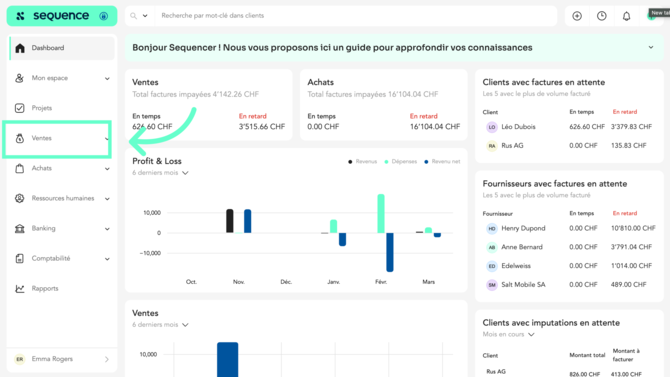
2. Then, click on **"Invoices."**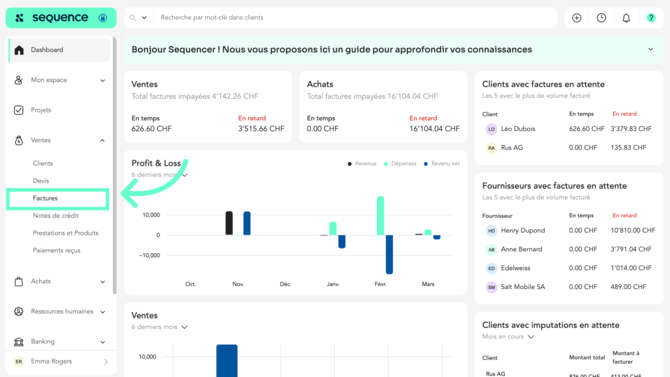
3. **Select the client.**
As soon as a client is selected, the relevant client details will be automatically filled in the corresponding fields. 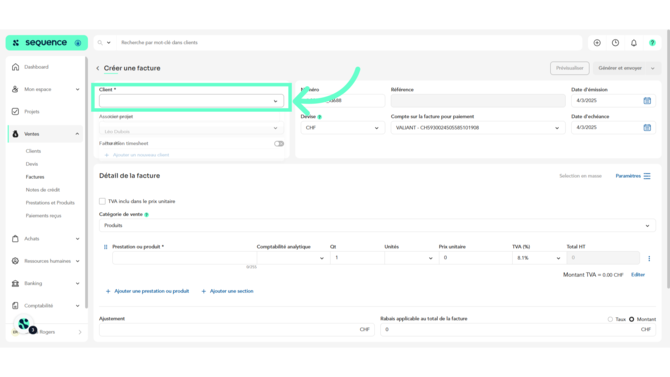
4. If you wish to **add a new client**, click on **"Add a new client"** from the client dropdown list.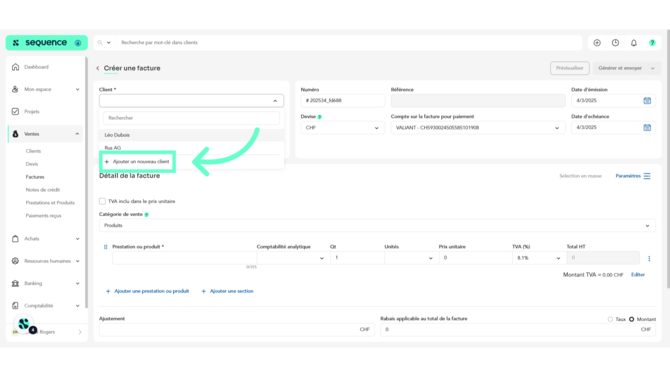
5. If you want to **link time entries**, enable the **Timesheet** toggle.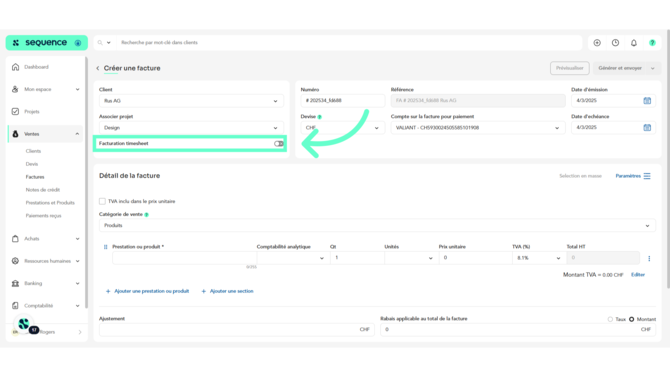
1. You can then use the selectors to switch between clients with pending time entries.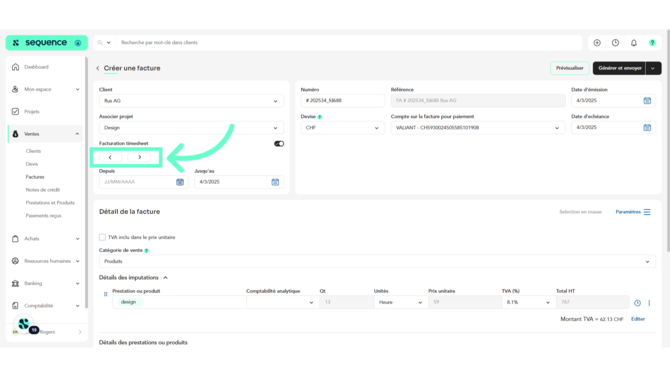
2. Period selectors will appear—choose the relevant dates to modify them.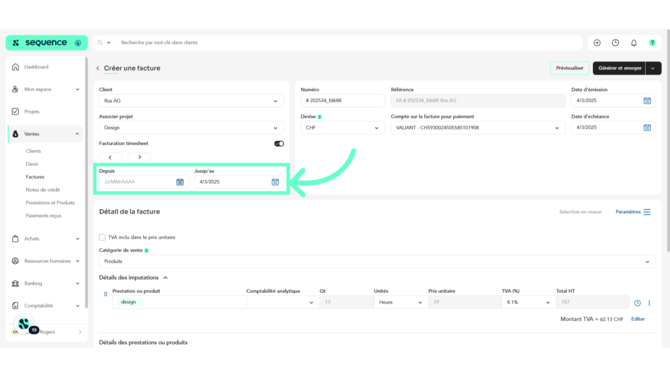
In addition to the **client**, **project**, and **timesheet** fields in the left-hand module, in the right-hand module you will also be able to specify the **invoice number**, the **currency**, the **account to which the payment must be made**, as well as the **issue date** and the **payment date**.
Regarding the issue date, **it will not be possible to issue the invoice with a future dat**e. In fact, if you click on the calendar, you will see that future dates are disabled.
6\. In the **Invoice Details** section, choose the appropriate **Sales Category** from the dropdown.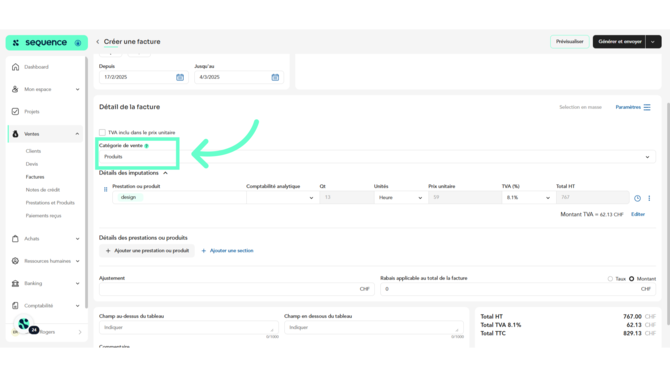
7\. Select **"VAT Included"** if you want VAT to be **deducted** from the unit price.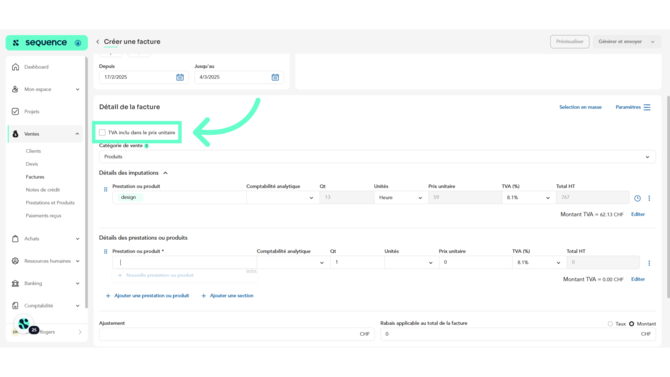
8\. Enter the details of each **item or service.**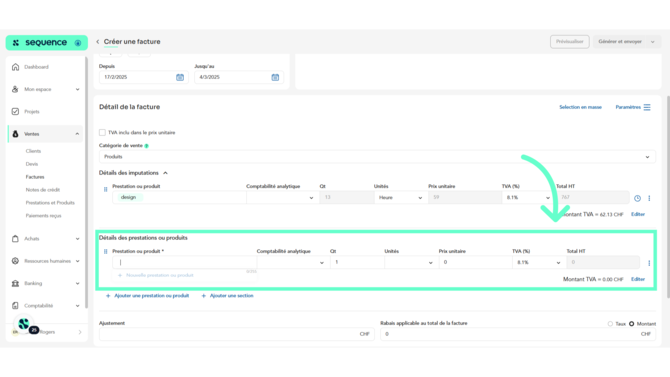
9\. To add a new line, click **"+ Add a service or product."**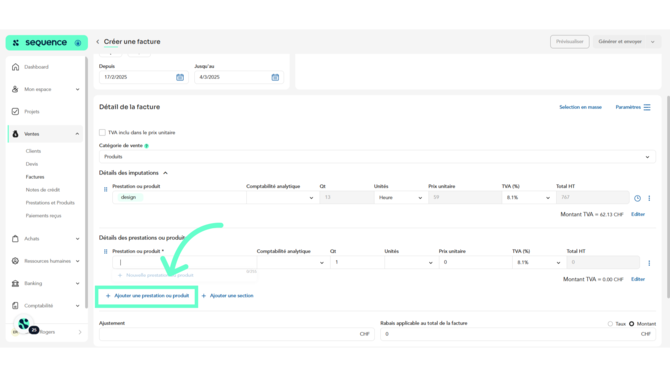
10\. You can **organize your products** by adding **sections** and rearranging them as needed.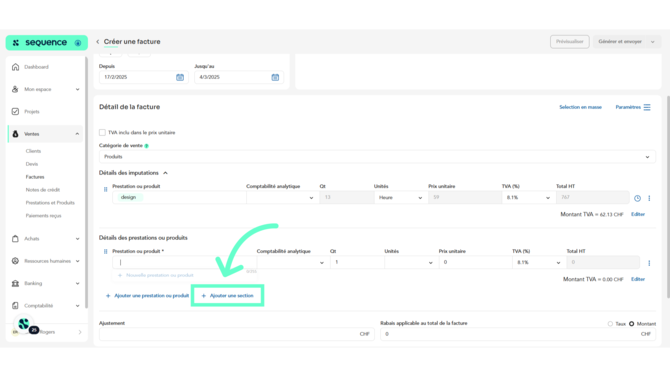
11\. To customize fields, time entries, invoice format, or language, click on **"Settings".**
As long as the invoice has not been posted, the language in which it was created can be changed from Settings.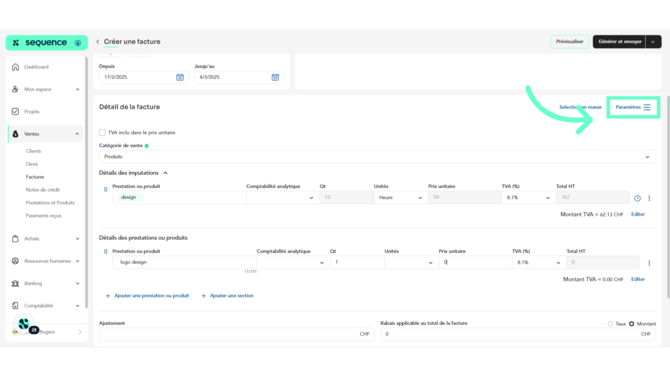
12\. Check the box to **bill time entries** but **change the quantity** shown to the client.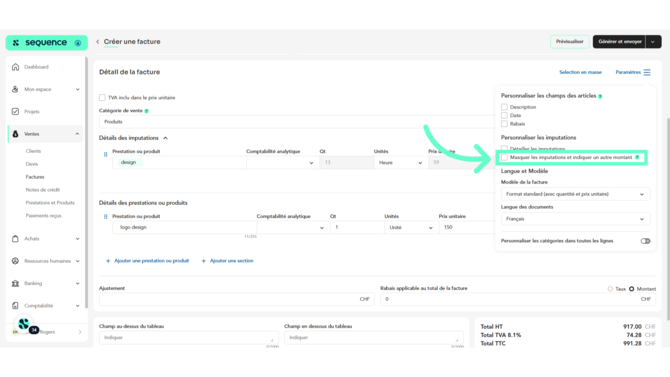
13\. Enable the option to **customize categories per line.**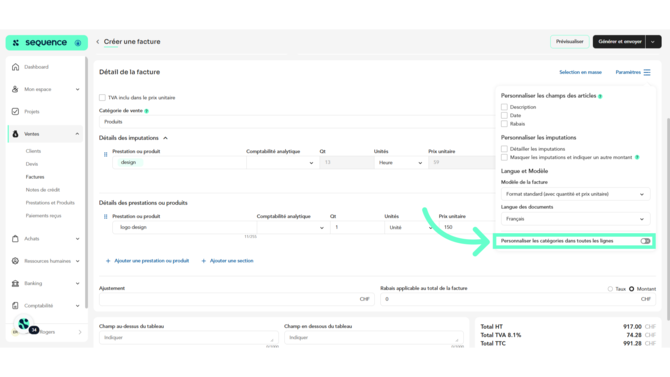
14\. Enter an **adjustment value** in the "Adjustment" field to round totals.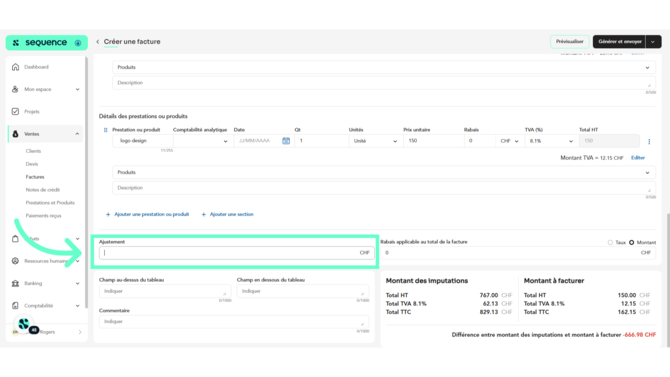
15\. You can also apply a **discount** (as a percentage or fixed amount) to the invoice total.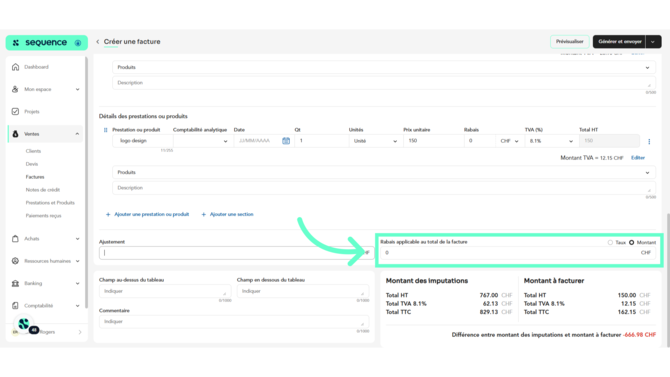
16\. Enter **comments** in the comment box, or add custom text **above or below** the invoice table.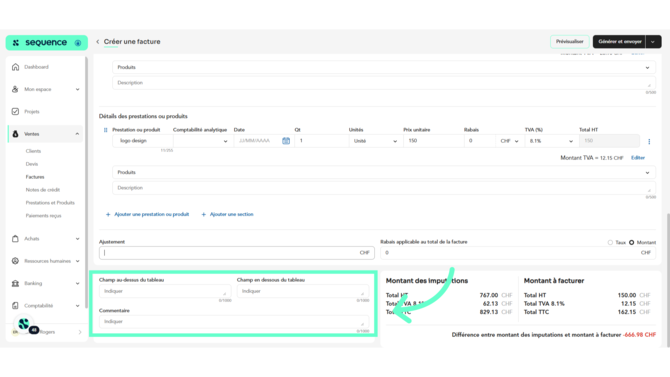
17\. To **preview** the invoice, click on **"Preview"** in the top-right corner.
In the invoice preview, you will see the text "Payment method" appear. This text is not editable and indicates the account to which users can make payment via bank transfer. This account is the one you select when creating the invoice, which can be either with an IBAN or an IBAN QR.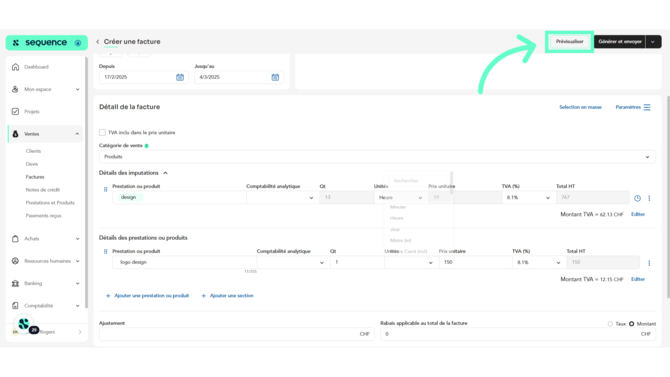
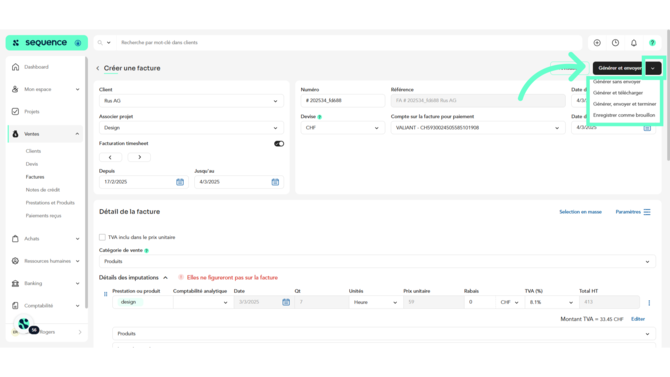
18\. To **generate and send** the invoice, click on **"Generate and Send".**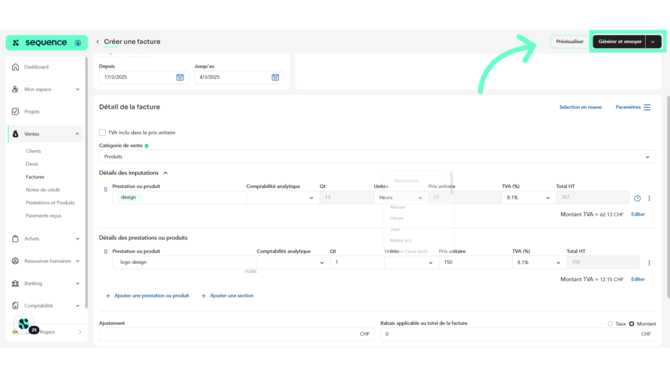
19\. Clicking the **arrow next to this button** opens more options.
**Generate and send:** the invoice will be finalized and sent to the client by email in a single step.
**Generate without sending:** the invoice will be generated but not sent immediately.
**Generate and download:** the invoice will be generated and downloaded for printing or archiving.
**Generate, send, and finalize:** the invoice will be generated, sent to the client, and the process will be completed.
**Save as draft:** the invoice will be kept as a draft, without being finalized or sent.
**Sending via Email and Client Portal :**
1. Click **"Generate and Send."**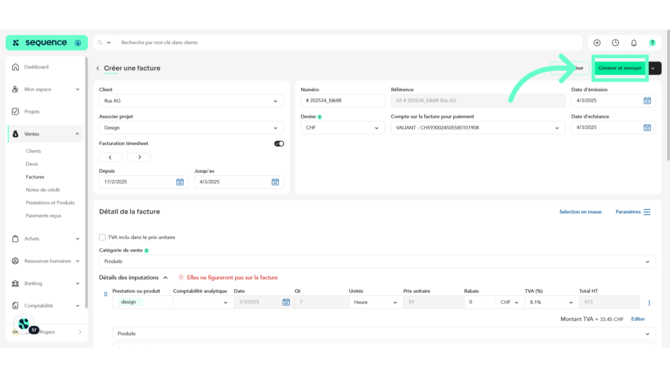
2. You’ll see a **preview of the email** that will be sent to your client.
You can **edit the message** if needed.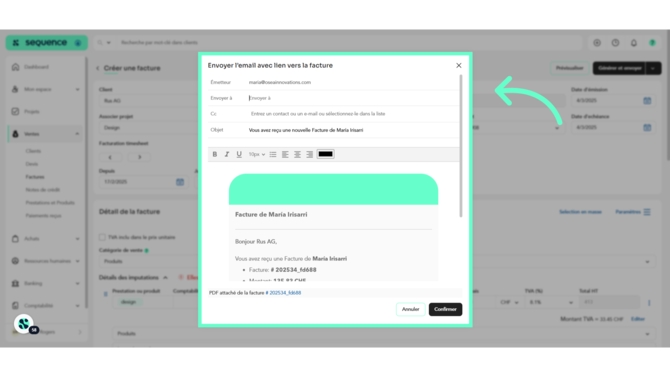
3. Check the **email address** in the "Send to" field.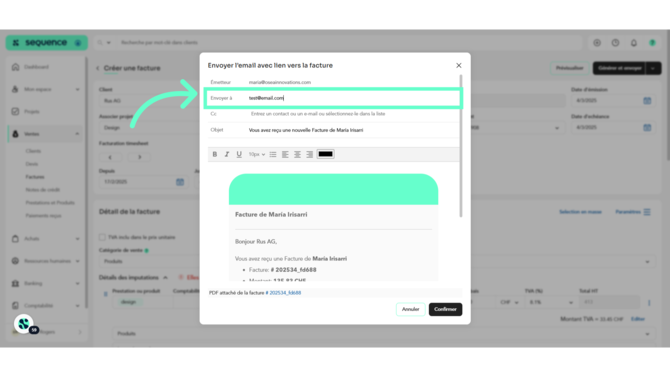
4. Click **"Confirm"** to send.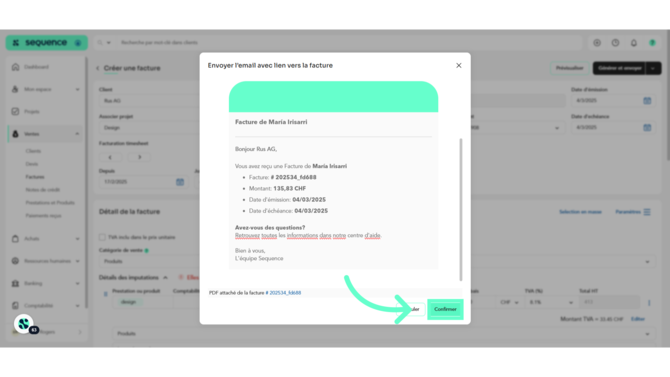
The invoice will now appear in your **invoice list**, and the client will receive it by **email** and in their **Sequence portal** (if connected).
For more information on connecting a client, see the article:
[**"How to Add a Client?"**](https://university.sequence-erp.com/en/knowledge/sales/customers)
- [Getting Started](http://www.wearesequence.ai/en/knowledge/getting-started?hsLang=en)
- [FAQ](http://www.wearesequence.ai/en/knowledge/faq?hsLang=en)
- [Top menu](http://www.wearesequence.ai/en/knowledge/top-menu?hsLang=en)
- [My profile](http://www.wearesequence.ai/en/knowledge/my-profile?hsLang=en)
- [My company](http://www.wearesequence.ai/en/knowledge/my-company?hsLang=en#main-content)
- [TVA](http://www.wearesequence.ai/en/knowledge/my-company?hsLang=en#tva)
- [Users](http://www.wearesequence.ai/en/knowledge/my-company?hsLang=en#users)
- [Import box](http://www.wearesequence.ai/en/knowledge/import-box?hsLang=en)
- [My space](http://www.wearesequence.ai/en/knowledge/my-space?hsLang=en#main-content)
- [Dashboard](http://www.wearesequence.ai/en/knowledge/my-space?hsLang=en#dashboard)
- [Tasks](http://www.wearesequence.ai/en/knowledge/my-space?hsLang=en#tasks)
- [Timesheet](http://www.wearesequence.ai/en/knowledge/my-space?hsLang=en#timesheet)
- [Expenses](http://www.wearesequence.ai/en/knowledge/my-space?hsLang=en#expenses)
- [My absences](http://www.wearesequence.ai/en/knowledge/my-space?hsLang=en#my-absences)
- [Salary certificates](http://www.wearesequence.ai/en/knowledge/my-space?hsLang=en#salary-certificates)
- [Projects](http://www.wearesequence.ai/en/knowledge/projects?hsLang=en)
- [Sales](http://www.wearesequence.ai/en/knowledge/sales?hsLang=en#main-content)
- [Customers](http://www.wearesequence.ai/en/knowledge/sales?hsLang=en#customers)
- [Quotes](http://www.wearesequence.ai/en/knowledge/sales?hsLang=en#quotes)
- [Invoices](http://www.wearesequence.ai/en/knowledge/sales?hsLang=en#invoices)
- [Credit notes](http://www.wearesequence.ai/en/knowledge/sales?hsLang=en#credit-notes)
- [Products and services](http://www.wearesequence.ai/en/knowledge/sales?hsLang=en#products-and-services)
- [Payments](http://www.wearesequence.ai/en/knowledge/sales?hsLang=en#payments)
- [Purchases](http://www.wearesequence.ai/en/knowledge/purchases?hsLang=en#main-content)
- [Suppliers](http://www.wearesequence.ai/en/knowledge/purchases?hsLang=en#suppliers)
- [Quotes](http://www.wearesequence.ai/en/knowledge/purchases?hsLang=en#quotes)
- [Invoices](http://www.wearesequence.ai/en/knowledge/purchases?hsLang=en#invoices)
- [Credit Notes](http://www.wearesequence.ai/en/knowledge/purchases?hsLang=en#credit-notes)
- [Payments](http://www.wearesequence.ai/en/knowledge/purchases?hsLang=en#payments)
- [Human Resources](http://www.wearesequence.ai/en/knowledge/human-resources?hsLang=en#main-content)
- [Employees](http://www.wearesequence.ai/en/knowledge/human-resources?hsLang=en#employees)
- [Employee expenses](http://www.wearesequence.ai/en/knowledge/human-resources?hsLang=en#employee-expenses)
- [Salaries](http://www.wearesequence.ai/en/knowledge/human-resources?hsLang=en#salaries)
- [Absences](http://www.wearesequence.ai/en/knowledge/human-resources?hsLang=en#absences)
- [Enterprise](http://www.wearesequence.ai/en/knowledge/human-resources?hsLang=en#enterprise)
- [Salary Policy](http://www.wearesequence.ai/en/knowledge/human-resources?hsLang=en#salary-policy)
- [Swissdec Transmission](http://www.wearesequence.ai/en/knowledge/human-resources?hsLang=en#swissdec-transmission)
- [Reports](http://www.wearesequence.ai/en/knowledge/human-resources?hsLang=en#reports)
- [Banking](http://www.wearesequence.ai/en/knowledge/banking?hsLang=en#main-content)
- [Bank accounts](http://www.wearesequence.ai/en/knowledge/banking?hsLang=en#bank-accounts)
- [Bank imports](http://www.wearesequence.ai/en/knowledge/banking?hsLang=en#bank-imports)
- [Bank reconciliation](http://www.wearesequence.ai/en/knowledge/banking?hsLang=en#bank-reconciliation)
- [Payment orders](http://www.wearesequence.ai/en/knowledge/banking?hsLang=en#payment-orders)
- [Accounting](http://www.wearesequence.ai/en/knowledge/accounting?hsLang=en#main-content)
- [Chart of Accounts](http://www.wearesequence.ai/en/knowledge/accounting?hsLang=en#chart-of-accounts)
- [General Ledger](http://www.wearesequence.ai/en/knowledge/accounting?hsLang=en#general-ledger)
- [Accounting period](http://www.wearesequence.ai/en/knowledge/accounting?hsLang=en#accounting-period)
- [Analytical accounting](http://www.wearesequence.ai/en/knowledge/accounting?hsLang=en#analytical-accounting)
- [Accounting Control](http://www.wearesequence.ai/en/knowledge/accounting?hsLang=en#accounting-control)
- [Reports](http://www.wearesequence.ai/en/knowledge/reports?hsLang=en)
- [Account management](http://www.wearesequence.ai/en/knowledge/account-management?hsLang=en)
- [Fiduciary account](http://www.wearesequence.ai/en/knowledge/fiduciary-account?hsLang=en#main-content)
- [Client accounts](http://www.wearesequence.ai/en/knowledge/fiduciary-account?hsLang=en#client-accounts)
[](https://sequence-erp.com?hsLang=en)
[mailto:email@email.com](mailto:email@email.com)
Copyright © 2026, Sequence